Infoblox - Enable Inheritance for Extensible Attributes
Enable Inheritance
General
Infoblox Extensible Attributes (EAs) can inherit values based on where they are defined, with optional conditions controlling when or if inheritance occurs. This guide highlights key concepts such as:
-
Inheritance States: Defines how and whether an Extensible Attribute (EA) value is inherited by child objects. Common inheritance states may include:
-
Inherited – The EA value is passed down from a parent object.
-
Overridden – A different value is set at the child level, replacing the inherited one.
-
Disabled/Blocked – Inheritance is explicitly turned off for that object.
-
-
Restricted Objects: Objects in Infoblox that have limited support for Extensible Attributes, or that restrict how EAs can be applied or inherited. These objects may:
-
Not allow EA inheritance at all.
-
Only allow specific EAs to be set manually.
-
Require admin-level permissions to modify EAs.
-
Enable Inheritance
-
Select the box for an existing EA and click Edit.
-
In the modal, click the Additional Properties link
-
Select the Enable Inheritance checkbox.
-
Click Save & Close.
Apply
-
A new model will open.
-
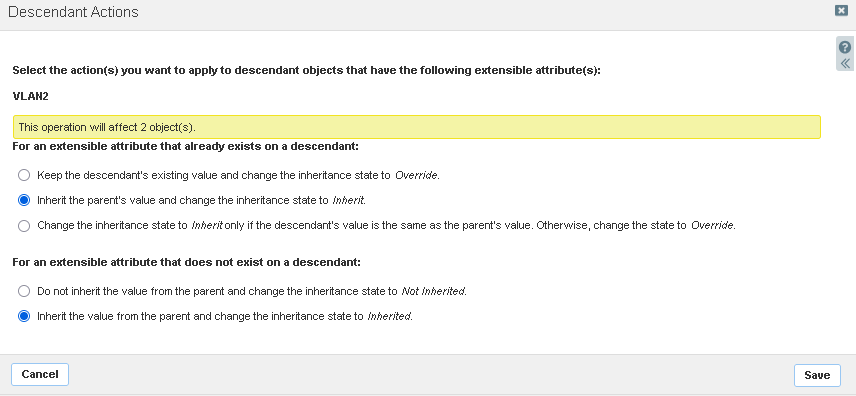
Depending on your policy, you can select which and how IPs are inherited:
-
Please read the Infoblox documentation on the Inheritance State: https://docs.infoblox.com/space/nios90/1340541030/Configuring+Inheritable+Extensible+Attributes
-
After selecting the operation conditions, click Save.
Verify
-
Navigate to the IPAM page
-
Click on a Network block that already has the EA of interest to drill down to the list of IPs
-
You can either add a custom column of that EA to the table or click on an IP
-
If checking on an IP, then select an IP, and then click Extensible Attributes on the right-side menu
-
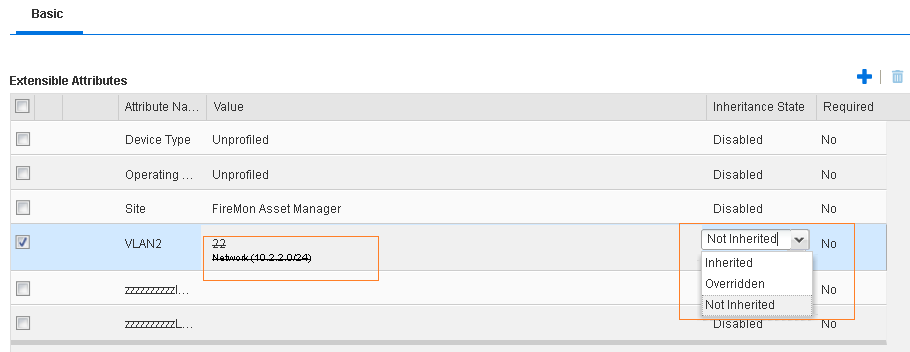
If an EA was not inherited due to the conditions selected above, it can appear like this:
-
If this occurs, go back to the Network block level and click Edit.
-
In the modal, click the Extensible Attributes link
-
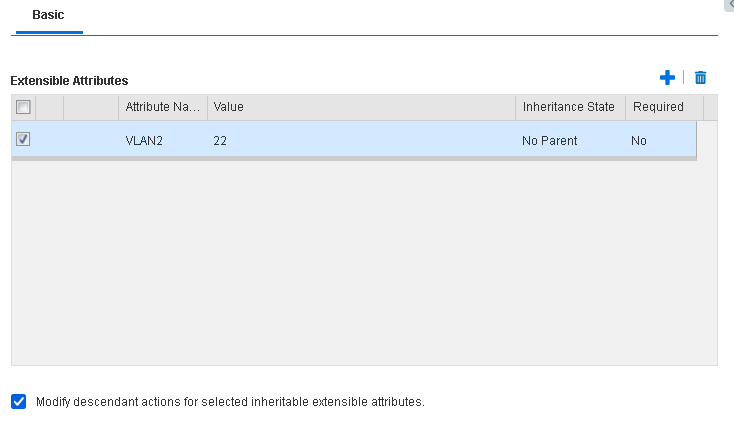
Select the EA that you want to modify.
-
Select the Modify descendant actions for selected inheritable extensible attributes checkbox.
-
Review the conditions and then click Save.
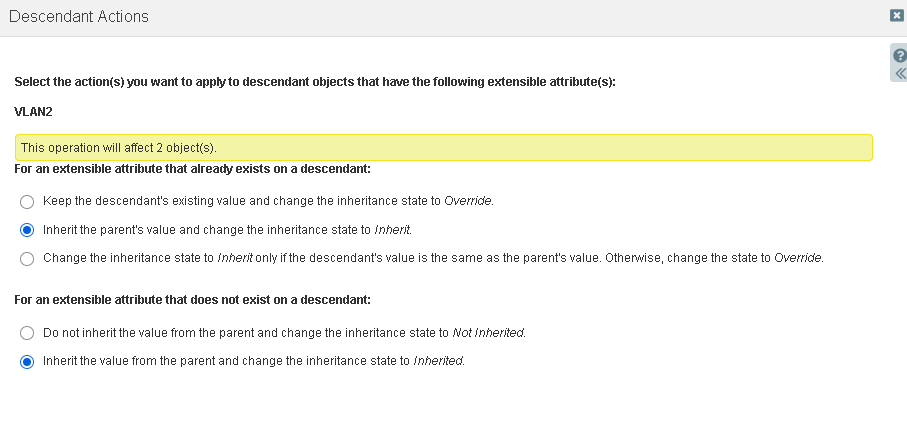
-
Go back to IP of interest.
-
You should now see the EA applied with it’s Inherited State applied:
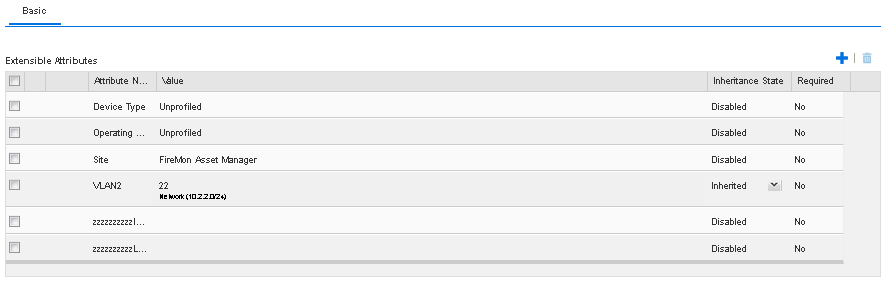
Troubleshoot
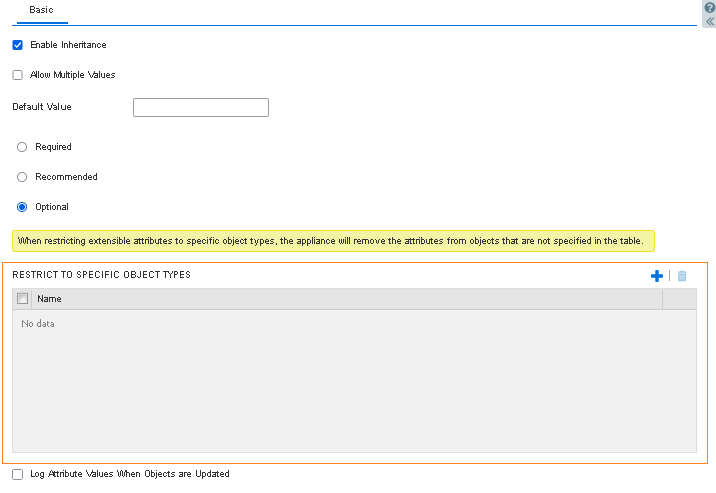
If EAs are still not being inherited, review the Restrict to Specific Object Types section to select which object types of EAs can be applied.
By default, custom EAs do not have any objects listed, and allow all.